XB Game Controller
Fa9ssaLibraries & Demo
3.611.00 Reviews
- Version
- 15.0
- Installs
- 50.00K
- Age Rating
- Everyone
Screenshots
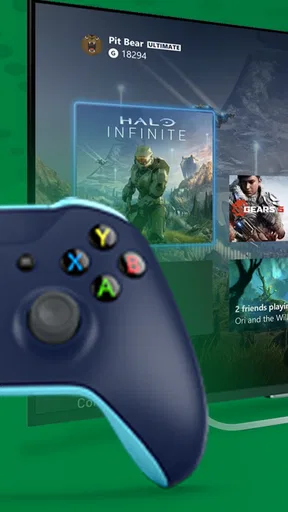
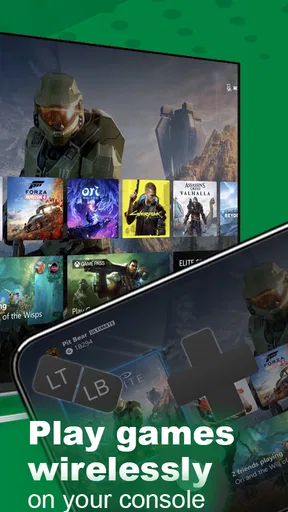
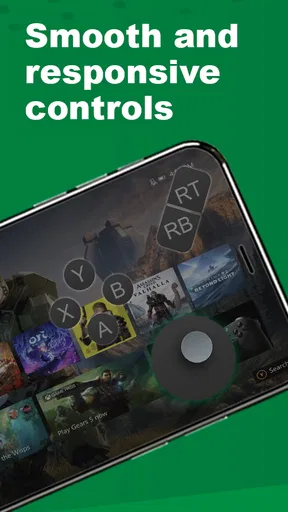
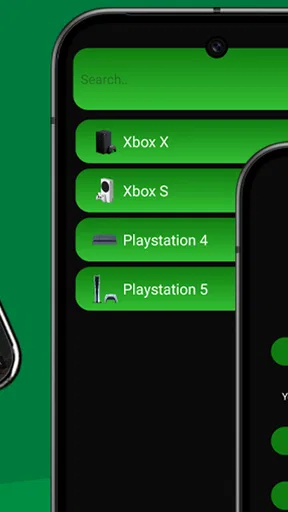
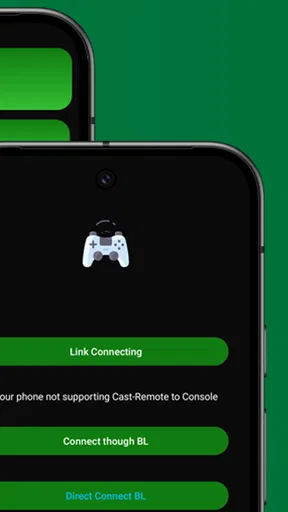
Our Review of XB Game Controller
 Analysis by Appyee
I approached XB Game Controller with a simple question: can a phone become a practical substitute for an Xbox controller, or is it only useful as a quick experiment? After spending time with it, I found an app aimed at a very specific kind of convenience. It is not trying to replace every physical gamepad in every situation. Its appeal is being able to use a phone for Xbox-style control when a traditional controller is unavailable, inconvenient, or needed by someone else.
The app sits in the Libraries & Demo section and comes from Fa9ssa. It is free, rated for Everyone, and currently listed as version 15.0 for devices running Android 7.0 or later. The store page shows a 3.7 average from around 277 ratings, with over 50 thousand installs. Those figures suggest a modest but real audience rather than a universally polished standard, which matches my experience: the idea is useful, but the quality of the experience depends heavily on your phone, network, game, and expectations.
What the phone controller is really good for
The main concept is easy to understand. Your phone acts as a wireless Xbox controller, letting you play, stream, or control compatible Xbox-related experiences without holding a physical pad. That makes the app interesting for casual sessions, testing, remote play situations, and moments when your usual controller is charging or being used elsewhere.
What I would not do is install it expecting the exact feel of an official Xbox controller. A phone screen has no physical travel, no tactile separation between buttons, and no natural way to rest your thumbs on familiar sticks. Even if the on-screen controls respond correctly, the experience can feel less precise during fast action. For menus, slower games, streaming, and short sessions, that compromise is easier to accept. For competitive play or games that demand repeated aiming and quick combinations, a real controller remains the better tool.
The wireless approach also changes the kind of problem this app solves. It is not merely a virtual gamepad for entertainment; it is a bridge between a mobile device and an Xbox-oriented setup. That means the most important part is not the visual layout but whether the phone and the target experience communicate reliably. A user who understands that distinction will have a much smoother first session than someone who treats it like a standalone game.
Who should consider installing it
I think it makes the most sense for people who already use an Xbox console or Xbox streaming environment and want a backup control method. It can also suit a household where one controller is available but another person needs temporary access. A parent checking a game, a visitor trying a short session, or a player waiting for a replacement controller can all find value here.
It is less suitable for anyone who wants a premium, console-like feel from the phone itself. If your priority is accurate thumbstick control, rumble, ergonomic comfort, or long uninterrupted sessions, buying or borrowing a physical controller is the more sensible choice. The app is best viewed as a practical workaround, not as a magic upgrade to mobile gaming.
Before you begin the first connection
My first recommendation is to treat setup as a small troubleshooting exercise rather than pressing buttons at random. Keep the phone charged, close unrelated apps, and place the phone where you can see the controls comfortably while checking the Xbox or streaming side. A stable wireless environment matters more here than it does for an ordinary offline app because control input has to travel between devices.
It is also worth deciding what you want to test first. Do not begin with the most demanding game in your library. Start with a menu, a simple navigation task, or a low-pressure title. That gives you a clear answer about whether the connection and input mapping work before you add the extra difficulty of fast movement, aiming, or combat.
Because the app is free, there is little financial risk in trying it, but free does not mean frictionless. Your phone model, screen size, background activity, and wireless conditions can all affect how comfortable it feels. A larger display may make virtual controls easier to see, while a compact phone can be more awkward if your hands cover part of the screen. Neither situation automatically makes the app unusable, but it changes how much patience the first setup requires.
Getting from installation to a working control session
I treat the first connection as a small, controlled test rather than a race to start playing. Having the phone and the Xbox-side session ready before I begin makes it easier to spot where a snag occurs, and testing one simple action gives me a useful baseline. The next section looks at how to build that first session step by step without adding avoidable confusion.
Start with a calm, visible setup
After installing XB Game Controller, I would keep the app open while the Xbox or related streaming session is ready. The goal is to avoid guessing which side is responsible when something fails. If the phone shows controls but the console does not react, that points to a communication or compatibility issue. If the phone itself feels unresponsive, the problem may be local to the app, the device, or the way your fingers are interacting with the screen.
Use the first few minutes to identify the basic control areas rather than attempting a full game. Find the directional controls, the action buttons, and any buttons needed to open or close a menu. This sounds obvious, but it is one of the most useful habits with a touchscreen controller: learning the layout while nothing important is happening prevents confusion when a game suddenly asks for a quick input.
I also suggest holding the phone in the orientation that feels most natural before starting. Changing your grip after the session begins can make your thumbs land in different places, especially if the device is narrow or the screen is slippery. A stable grip is not just about comfort; it helps you judge whether a missed input came from the app or from your hand shifting.
Make the first successful action deliberately simple
Your first success should be something you can recognize immediately. Move through a menu, select an item, or perform another basic navigation action. If that works, try one controlled movement inside a game or streamed session. I prefer this approach because it separates connection success from gameplay skill. You are testing whether the phone can send a command and whether the target responds, not trying to win anything yet.
Once a simple input works, pause and repeat it several times. A single successful tap can be accidental or delayed, while repeated predictable responses tell you much more. Try a short sequence with different controls, then return to the menu. This small check can reveal whether one area of the virtual layout is harder to reach or whether the connection becomes inconsistent when inputs arrive close together.
A useful everyday scenario is a living room where the main controller is occupied. I can imagine starting a streamed game with the phone, navigating to the right profile or title, and playing a short, low-pressure section while waiting for the physical controller. In that situation, the app does not need to outperform an official pad. It only needs to provide dependable temporary control, and that is where its concept is most convincing.
Give yourself time to adapt to touch input
The biggest adjustment is the lack of physical feedback. With a standard Xbox controller, I can feel where a button is without looking down. On a phone, I rely more on visual placement and memory. During my first attempts, that made simple actions feel slower than expected. The solution is not complicated: keep the first session short, use familiar games, and avoid judging the app during a stressful sequence.
Touch control also changes how you manage your hands. Pressing several virtual controls at once may feel less natural than using a physical pad, and your palm can accidentally touch the edge of the screen. If that happens, try a lighter grip and keep your thumbs centered over the intended controls. A phone stand or a stable resting position may help for menu navigation, although it will not turn the screen into a physical controller.
For streaming, responsiveness is especially important. Even a small delay can make an action-heavy game feel uncomfortable. If movement seems late, test a slower menu or a less demanding title before deciding that the entire app is unusable. The delay may come from the broader wireless route rather than the virtual controller alone. That distinction matters because changing the network position or reducing background activity may help, while no layout adjustment can fix a poor connection.
Confusion points that can make the app seem broken
When a phone displays controls but the Xbox does not respond, it is easy to blame the app immediately. I find it more useful to separate touch placement, connection conditions, and whether the target session is ready, then change one thing at a time. The following section focuses on those easy-to-miss distinctions and a calmer way to troubleshoot them.
A visible controller does not guarantee a ready session
One common misunderstanding is assuming that seeing an on-screen controller means the Xbox side is already prepared to accept every command. In practice, a controller app still depends on the target device or service being ready and compatible. If the screen looks correct but nothing happens, check the connection path and the active session before repeatedly tapping the controls.
I would also avoid opening several related apps at once during the first test. When multiple services or controller tools are active, it becomes harder to know which one is receiving input. Close anything unnecessary, return to the intended Xbox session, and test one action at a time. This is a simple workflow improvement, but it saves more time than repeatedly reinstalling an app that may be functioning normally.
Do not confuse input delay with a bad button press
Touchscreens can make a command feel uncertain because they do not provide the click of a physical button. If an action seems late, resist the temptation to tap it repeatedly. Repeated taps can create extra commands once the connection catches up, producing behavior that looks random. Instead, press once, wait briefly, and observe the response. That habit is particularly important when navigating menus, where duplicate inputs can move past the item you wanted.
If the response remains inconsistent, simplify the test. Use one direction or one action, then try another. Test close to the wireless access point if possible and reduce other network activity. I would not promise that these steps solve every problem, but they help distinguish an unstable environment from a control layout issue. That is a more useful diagnosis than simply deciding that the app is unreliable.
Screen size and grip affect accuracy more than expected
The same virtual layout can feel very different on two phones. On a larger screen, controls may be easier to see but require wider thumb movement. On a smaller screen, the controls may be closer together and quicker to reach, while accidental touches become more likely. If the app feels awkward immediately, experiment with your grip and orientation before judging its basic responsiveness.
Brightness and notifications are also practical concerns during a session. A notification can pull your attention away from the game, and a dim screen makes touch targets harder to follow. I prefer to begin with a clear screen and a comfortable brightness level, then keep the first test focused on navigation. These details sound minor, but they matter more when the phone is serving as the entire control surface.
Where it fits beside ordinary alternatives
The usual alternative is an official or compatible physical Xbox controller. That option wins for comfort, tactile feedback, precision, and longer play. It is also easier to use without looking down. If you play regularly, especially games built around aiming or rapid movement, the physical device is the sensible investment.
Another alternative is a different mobile controller solution designed around a particular streaming service or phone accessory. Those options may offer a more focused experience, but they can also require extra hardware or a narrower setup. XB Game Controller is appealing when the phone you already own is the most convenient thing available. Its advantage is accessibility, while its trade-off is that the phone remains a general-purpose touchscreen rather than a purpose-built gamepad.
I would choose this app over a physical controller for a short, occasional task: opening a game, checking a menu, navigating a streaming interface, or taking over briefly when no pad is free. I would choose the physical controller for a full evening, a difficult action game, or any situation where repeated precision matters. That boundary is important because it keeps expectations realistic and makes the app easier to appreciate.
Three practical habits that improve the experience
- Test navigation before gameplay. A menu gives you a clean way to confirm that commands are reaching the target without the pressure of a live match or difficult level.
- Use repeated single inputs to diagnose delay. One press at a time shows whether the issue is touch placement, wireless response, or accidental double tapping.
- Keep a physical controller as the long-session option. The phone is most valuable as a backup or temporary control surface, not as a guaranteed replacement for comfort and precision.
These habits also answer an important practical question: can a first-time user get meaningful value quickly? I think so, provided the first goal is modest. A successful menu action or short navigation task is a better starting point than demanding flawless performance in a fast game. Once that basic path works, you can decide whether the touchscreen feels acceptable for your own library.
My recommendation after using it
XB Game Controller is a focused free app with a useful emergency role. It gives an Android phone a chance to serve as a wireless Xbox-style control surface, and that can be genuinely handy when a physical controller is missing, occupied, or inconvenient. The setup is approachable when you begin with a simple test, keep the wireless environment stable, and remember that the app depends on the Xbox or streaming side being ready as well.
My reservations are equally clear. Touch controls cannot reproduce the feel of real buttons and sticks, and demanding games expose that difference quickly. Connection quality and device ergonomics can also shape the experience more than the store summary suggests. I would not recommend it as the first choice for competitive play or long sessions, but I would recommend trying it if you need a temporary solution and already have a compatible Xbox-oriented setup.
The app is currently free, rated for Everyone, and supports Android 7.0 and newer, so the entry barrier is low for many Android users. Fa9ssa has positioned it in the Libraries & Demo space rather than presenting it as a conventional game, and that feels accurate: the value comes from the tool it provides, not from content inside the app. If your expectations match that role, the first meaningful success can arrive quickly: connect, test a menu, confirm a repeatable action, and then decide whether your preferred games suit touchscreen control.
For me, that makes it worth keeping as a backup rather than relying on it as my only controller. It is a practical experiment with a clear use case, and its limitations are easy to understand once you try a calm, step-by-step setup. If you need a phone-based Xbox controller right now, it is a reasonable place to start; if you want the most comfortable and precise way to play, I would still reach for a physical pad.
Verdict
Strengths of XB Game Controller
- Works with many Android games that support standard Bluetooth controllers.
- Physical buttons provide better precision than touchscreen controls.
- Compact design makes it convenient for travel and quick gaming sessions.
- Can reduce finger blocking on-screen action during gameplay.
- Simple controls are suitable for casual players and beginners.
Limitations of XB Game Controller
- Compatibility may vary between games and iOS devices.
- Bluetooth pairing can occasionally require reconnecting.
- Small buttons may feel uncomfortable during extended sessions.
- Build quality may not satisfy users seeking a premium controller.
- Some games may require manual button mapping or configuration.
Other Releases by Fa9ssa
View All
Camera endoscope
Libraries & Demo3.0
Similar Picks in This Category
View All
PGT: GFX, Launcher & Optimizer
Trilokia Inc.4.5

AusweisApp Bund
Governikus Service GmbH3.7

Cardboard
Google LLC3.2

Gamers GLTool with Game Tuner
Trilokia Inc.4.5

Multi Web Chat - Read Secretly
World Scan & Cleaner3.8

App Cloner Premium & Add-ons
App Listo1.9
Frequently Asked Questions
What is XB Game Controller, and what devices is it compatible with?
XB Game Controller is a mobile companion app designed to help users connect, configure, or use a compatible Xbox-style game controller with a smartphone or tablet. Before downloading, check the app listing and your device settings for supported Android or iOS versions. Compatibility may also depend on the controller model, Bluetooth support, USB accessories, and the game being played.
How do I connect an Xbox controller to my phone using XB Game Controller?
In most cases, you need to activate Bluetooth on your phone, place the controller in pairing mode, and select it from the available devices. Some controllers may require a cable, adapter, or a specific connection method instead. After pairing, open XB Game Controller and follow its setup instructions. If the controller is not detected, update the app, restart Bluetooth, and verify that another device is not already connected.
Does XB Game Controller work with every mobile game?
No, controller support is not universal. XB Game Controller may recognize a connected controller, but individual games must also support physical controls. Some titles offer complete button mapping, while others support only movement or selected actions. Games designed exclusively for touchscreens may not respond at all. It is best to check each game’s controller compatibility before downloading or purchasing it.
Is XB Game Controller free to download, and are there advertisements or in-app purchases?
The download model, advertising, and optional purchases can vary depending on the version available in the Google Play Store or Apple App Store. Review the current store page before installing, especially if you want to avoid subscriptions or additional charges. Also check the permissions requested during setup, since unnecessary access requests may affect your privacy and overall confidence in the application.
What should I do if XB Game Controller has connection problems or input lag?
Start by keeping the controller close to the phone, charging its battery, and disconnecting it from other devices. Restart Bluetooth and the app, then pair the controller again. Closing background applications can also reduce delays, particularly on older phones. If the problem continues, update the operating system and controller firmware when available, and confirm that the specific game supports the controller properly.
